Create a new order in minutes
A complete order with route, date, contact and price, ready to be assigned.
What you'll achieve
- Create a one-time or recurring order from start to submit
- Set route, date, time, contact and price
- Understand how an organization order differs from a client order
Before you start
- Admin access to your organization
- The pickup and drop-off addresses, plus a date and arrival time
- A contact name and phone, and a price for the order
On this page
Why it matters
An order is the starting point of every ride. A correct order goes straight to assignment, while one with the wrong date or seats comes back to you by phone. Here you create an organization order: you set the price, and the order enters as Accepted.
Who creates the order
| Who creates it | Starting status | What happens next |
|---|---|---|
| A dispatcher or admin in your organization | Accepted | The order goes straight to driver and vehicle assignment |
| A client | Provision | Providers send price quotes, the client picks one, and the order moves to Accepted |
Steps
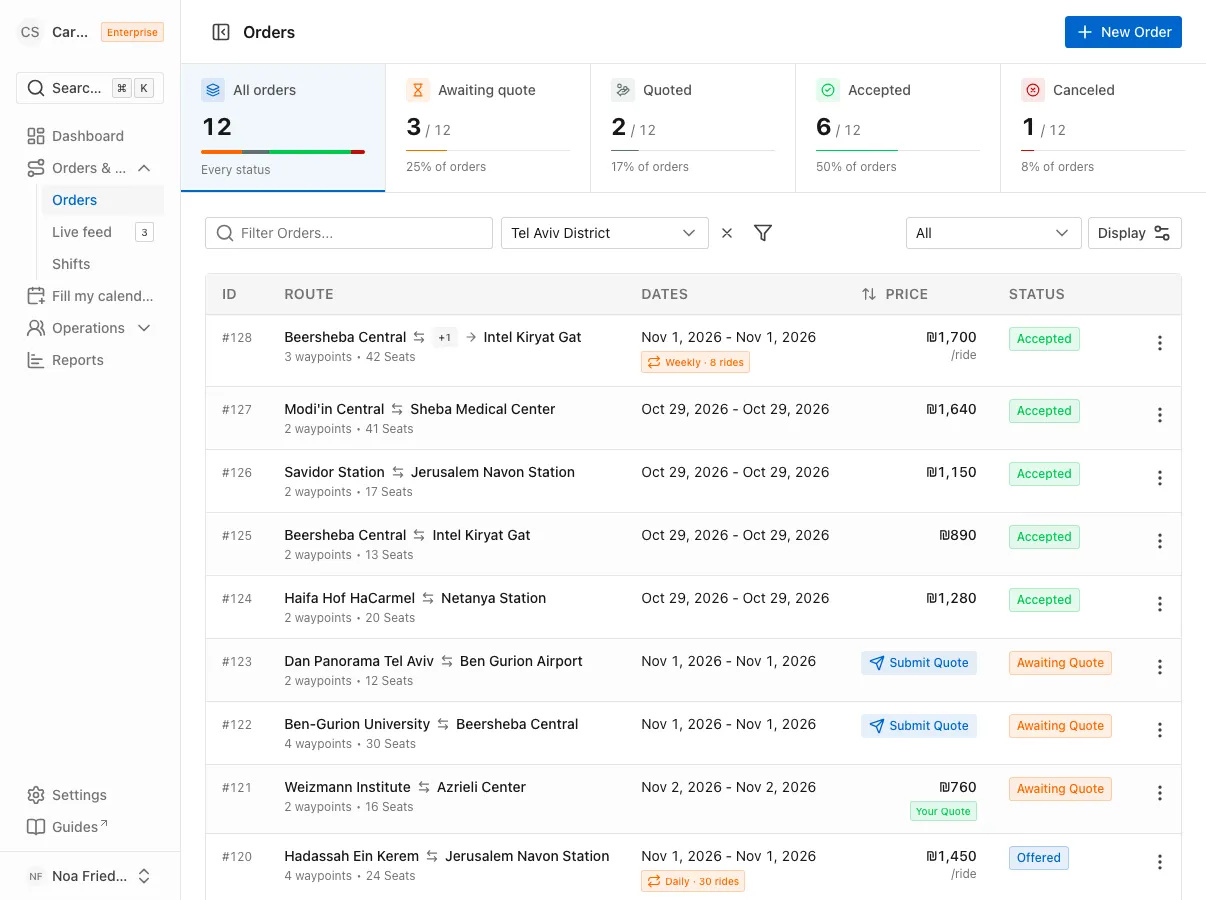
Open the Orders page
In the sidebar, open Orders & Rides and choose Orders. Click New Order in the top corner.
Choose the route type
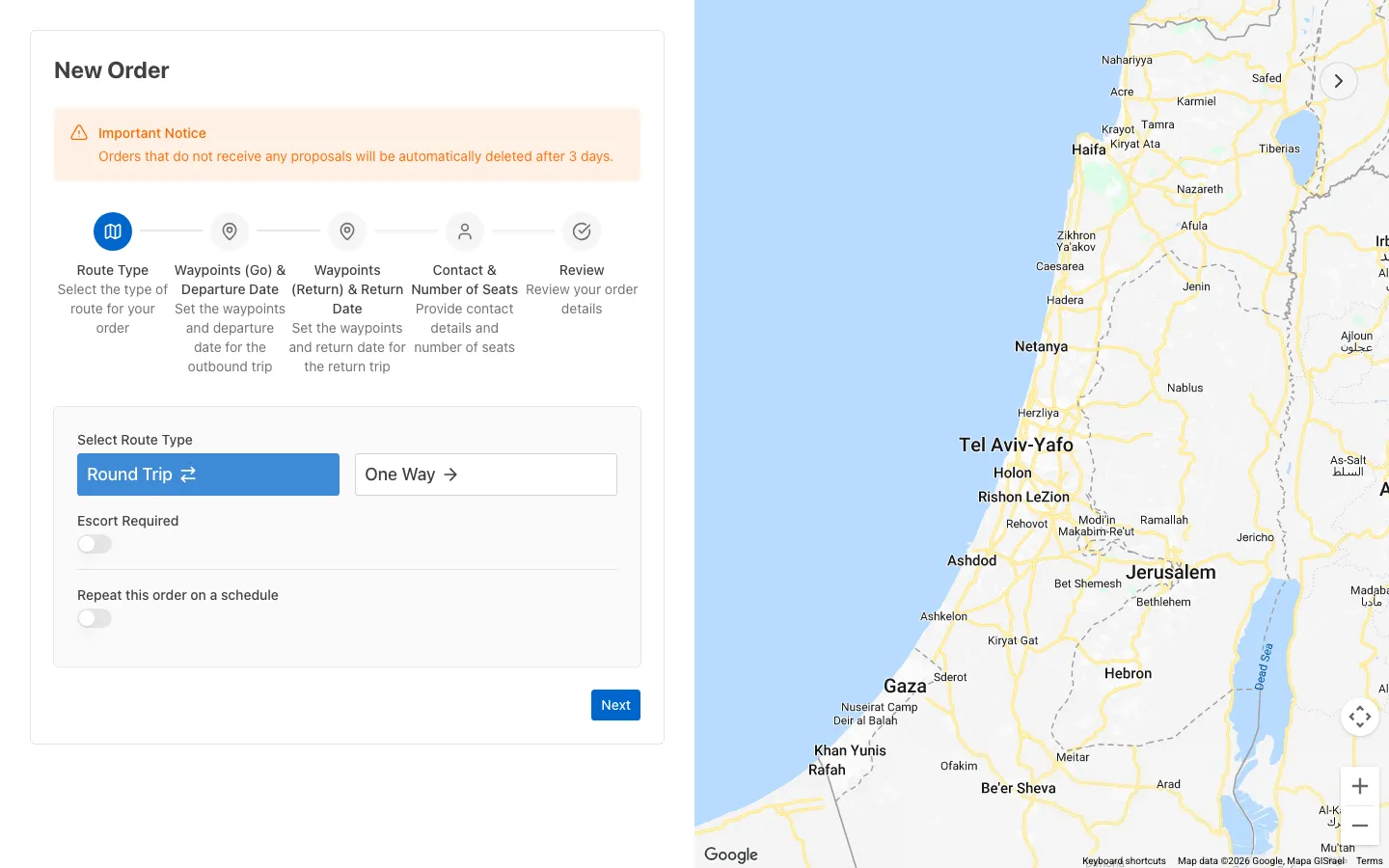
Choose Round Trip or One Way. For a round trip you can also switch on Escort Required. Click Next.
Decide whether the order repeats
For a regular shuttle, switch on Repeat this order on a schedule. Choose a Frequency: Daily, Weekly or Monthly. Then choose a Start Date and an End Date.
A message under the fields sums up how many rides will be created. Each date becomes its own ride. In this mode the date field does not appear on the waypoints screen, because the dates are already set here.
Add waypoints
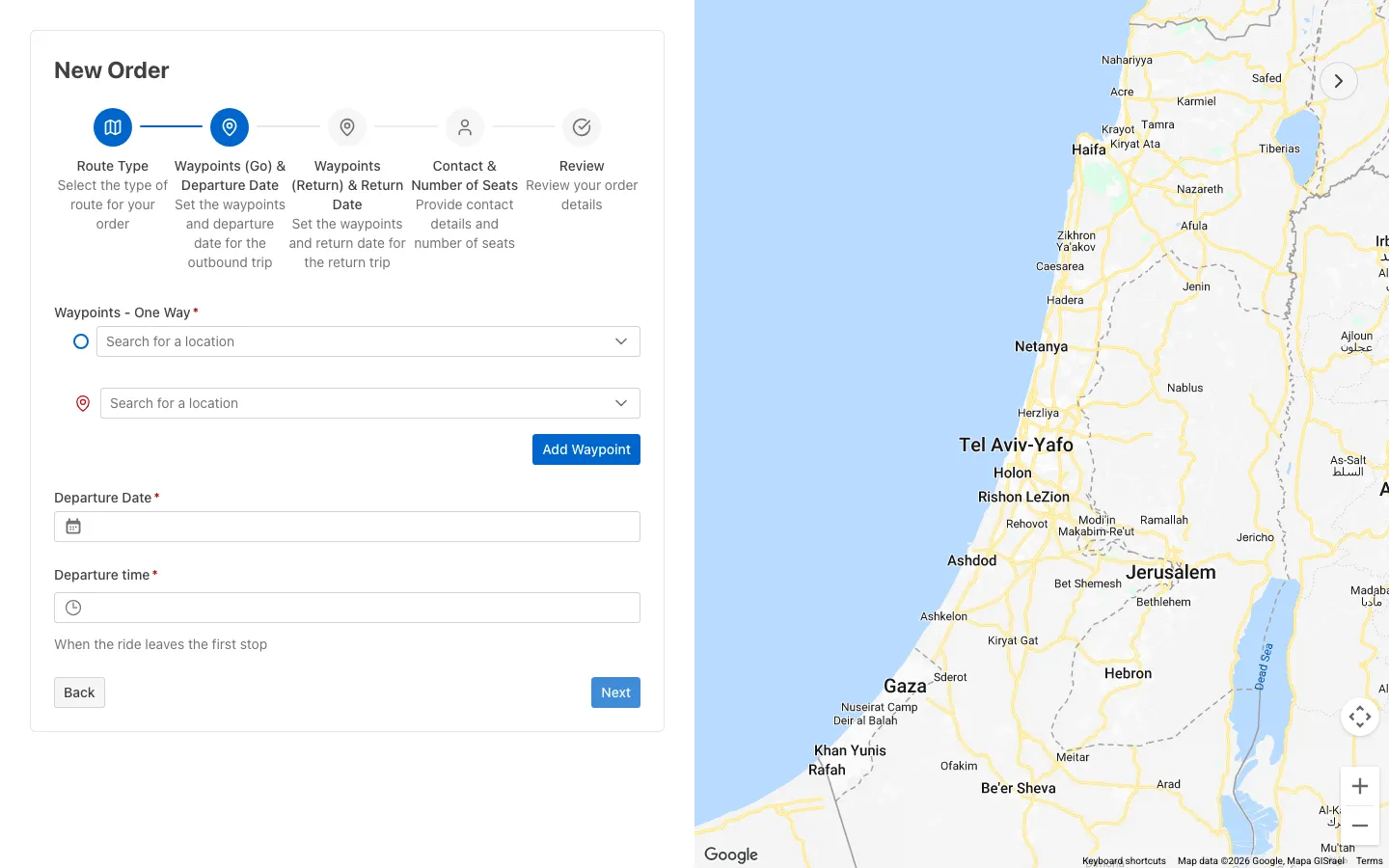
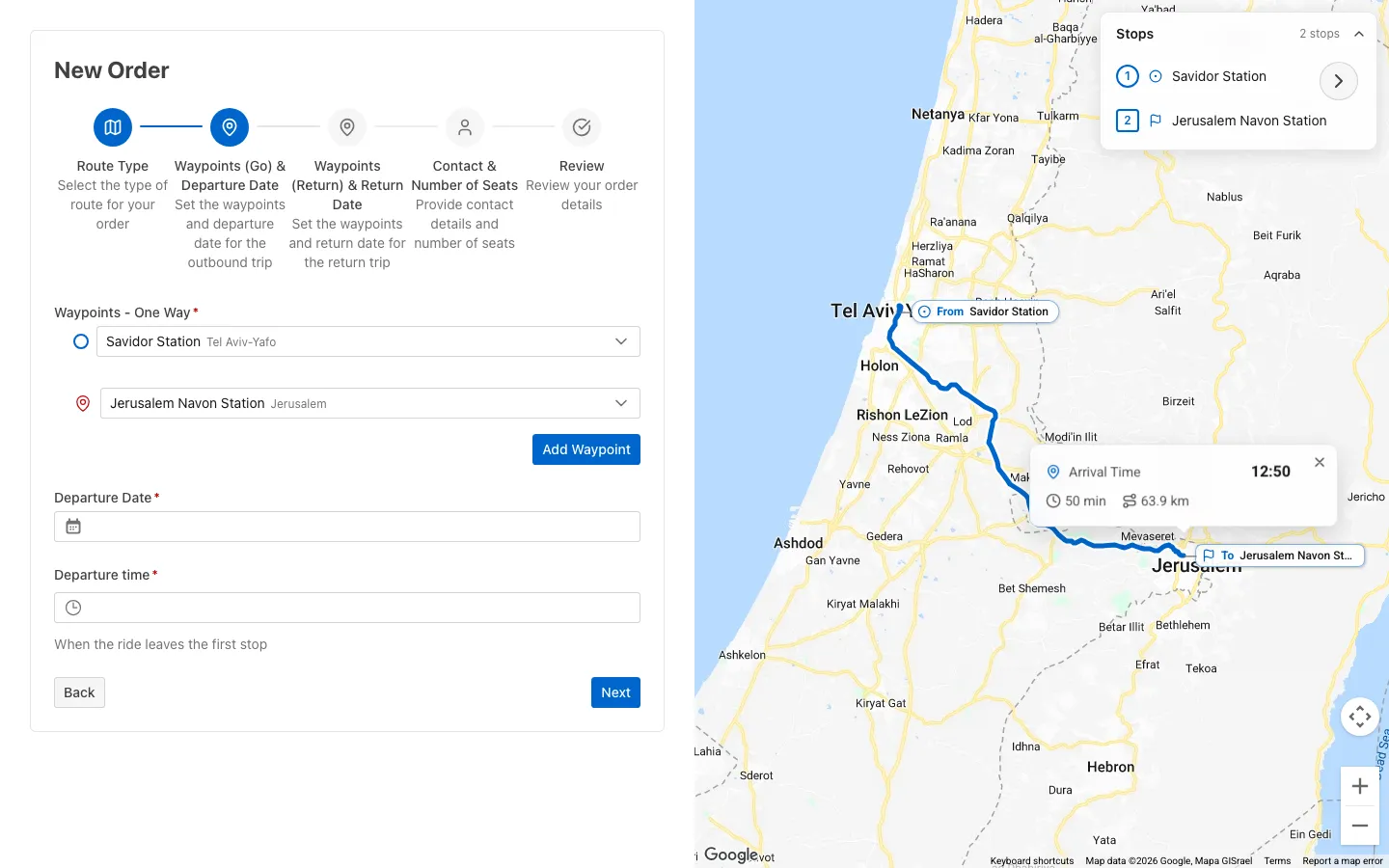
On the Waypoints (Go) & Departure Date screen you start with two stops: origin and destination. Type in Search for a location and pick an address from the list. For an intermediate stop, click Add Waypoint. To change the order, drag a stop by its handle. The map draws the route and estimates travel time.
Pick the departure date
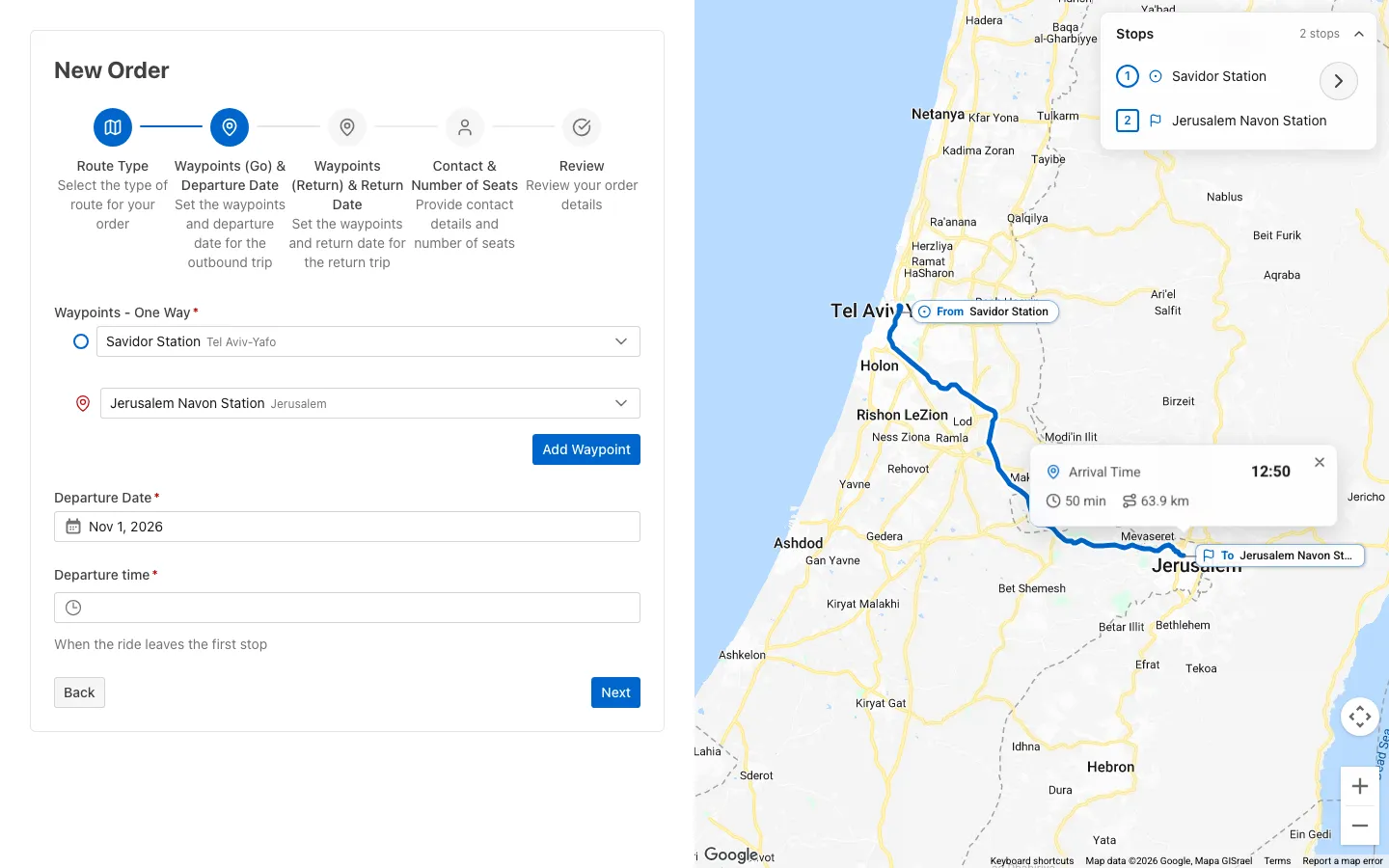
In Departure Date, pick a day from today onward.
Set the arrival time
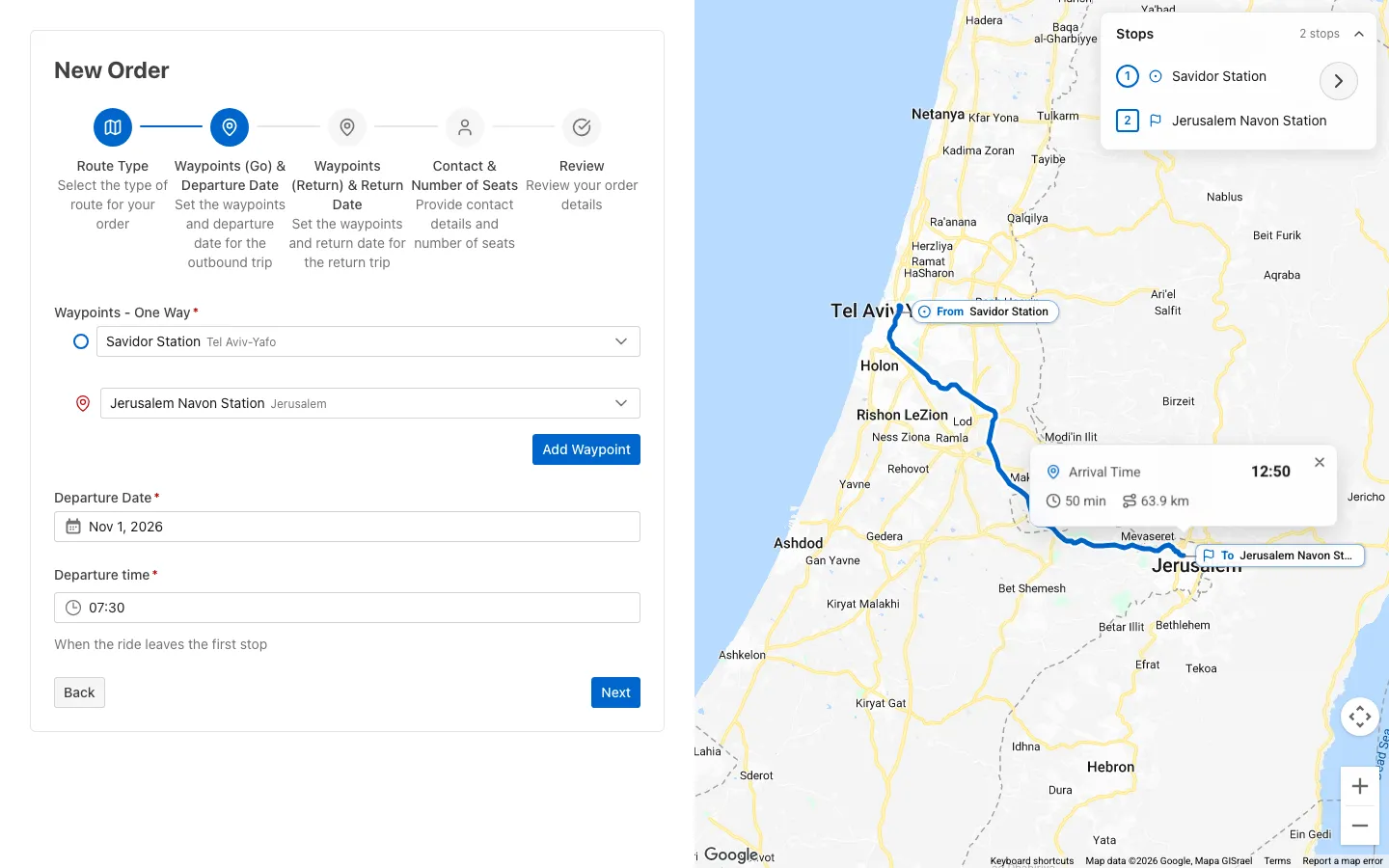
In Arrival Time, choose hours and minutes. Minutes move in quarter-hour steps. Click Next.
Fill in contact, seats and price
On the Contact & Number of Seats screen, fill in:
- Number of Seats
- Contact Name, letters only
- Contact Phone, digits only, formatted for you
- Price, required for an organization order
- Comment, if there is a special request
Review and submit
On the Review screen you see the Order Summary Review with the DRAFT tag. Check the route, dates and phone, then click Submit. The Order Created successfully message appears, and you return to the list with the order in the Accepted status.
Order statuses
| Status | Meaning |
|---|---|
| Provision | A client order waiting for price quotes |
| Offered | All the rides of the order have finished |
| Accepted | The order is confirmed and moves to assignment |
| Canceled | The order was canceled |
Common mistakes
- Picking a past date. The departure date must be today or in the future. Pick another day.
- Entering fewer than 8 seats. The form requires at least 8 seats. Enter a higher number.
- Forgetting the price. For an organization order the price is required, and at least 1.
- Typing an address without picking it from the list. A stop counts only after you choose a result from the list. At least two stops are required.
What’s next?
Was this helpful?
Thanks, glad it helped.
Ask us