Read any order at a glance
See the route, map and rides of any order, and know what is left to do.
What you'll achieve
- Open an order from the list and see all its details
- Check the route, stops and map
- Reach the rides created from the order and cancel one when needed
Before you start
- At least one order in the list
On this page
Why it matters
Before you assign a driver or answer a client, you need to know exactly what was ordered: from where, to where, when and for how much. The order side panel gives you all of that without leaving the list.
Steps
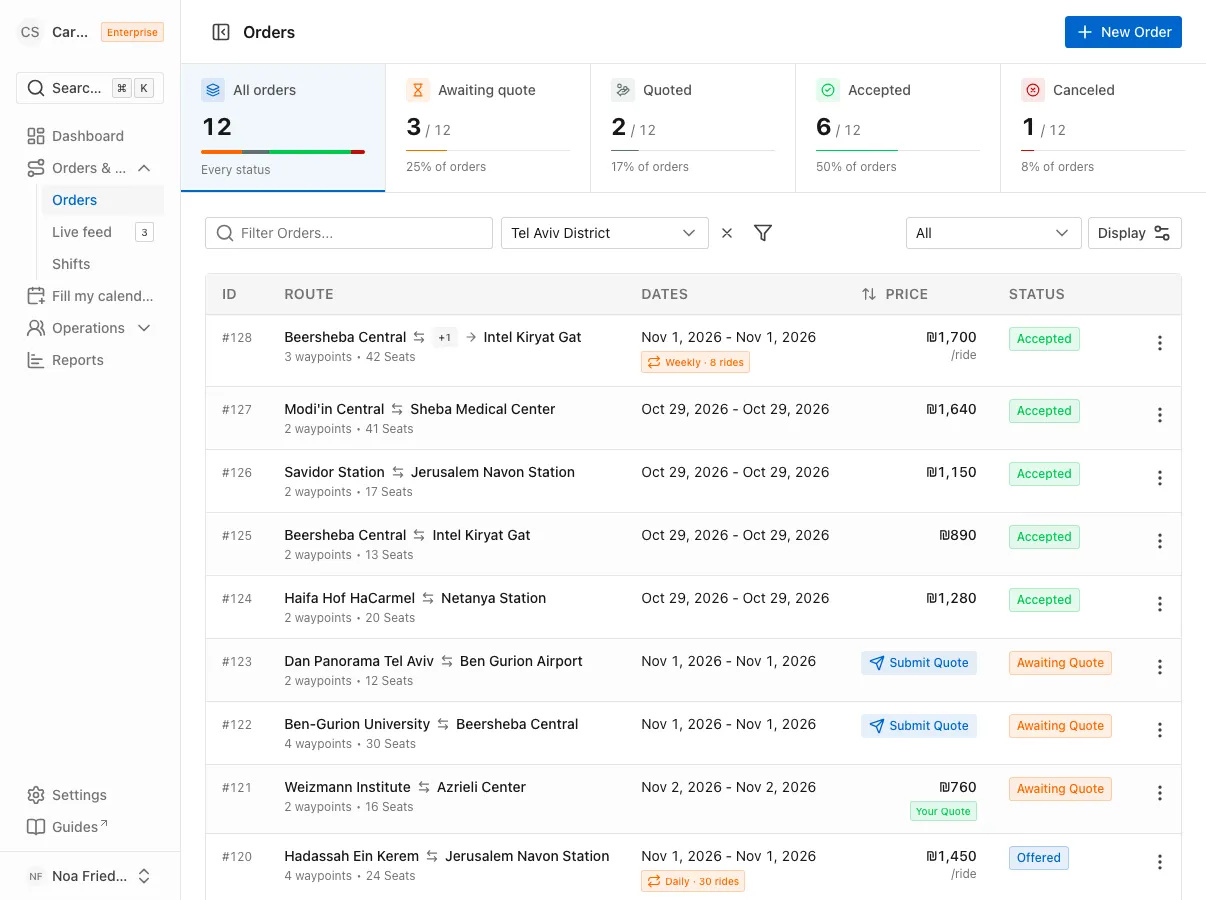
Open an order from the list
On the Orders page, click any row. A side panel opens with the order, and the list stays behind it.
Read the header
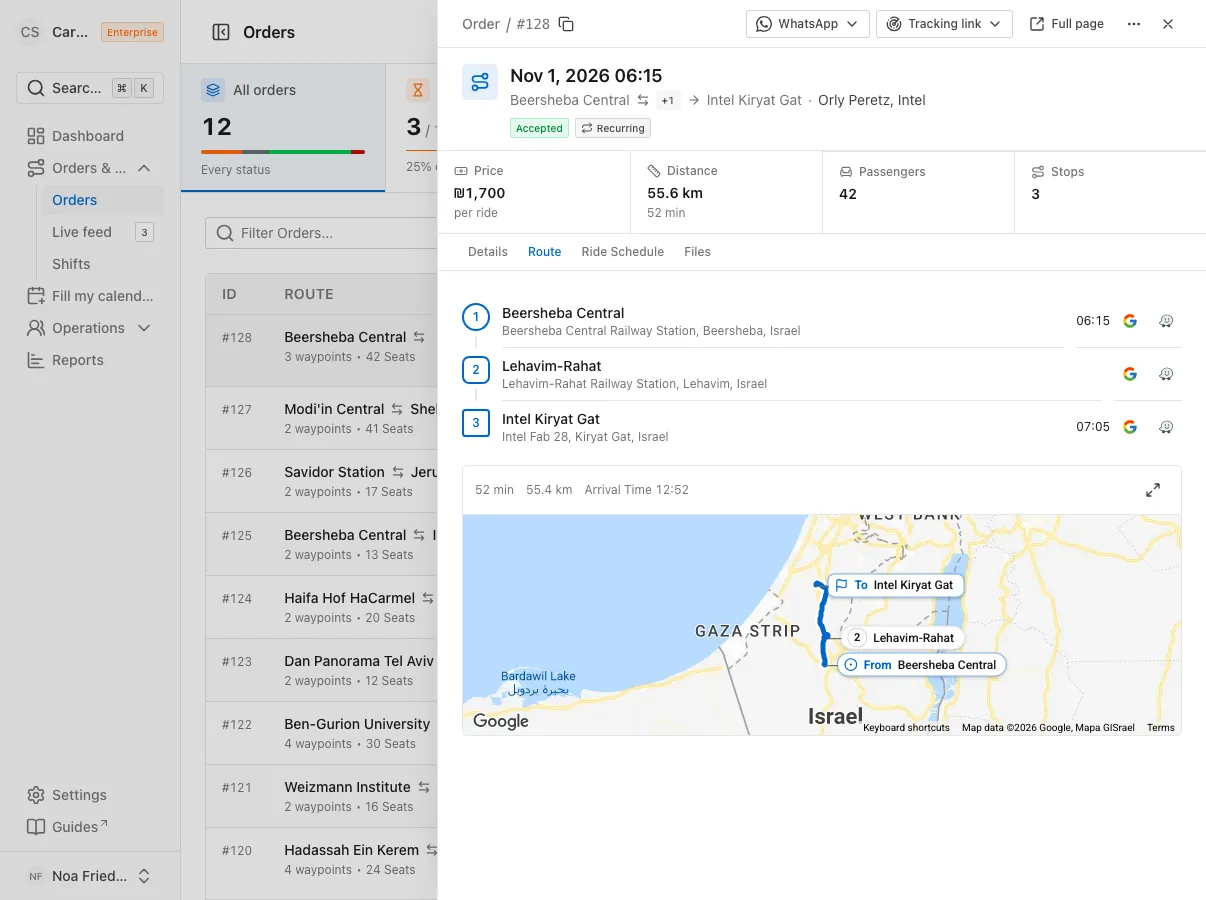
At the top you see Order with its number, a button to copy the ID, the origin and destination, and a Status badge. Below are four facts: Price, Number of Seats, Departure Date and the count of Waypoints.
If there is a contact or a comment, they show below under Customer Information and Comment. Once a driver and vehicle are assigned, they appear under Related, and clicking one opens that driver or vehicle.
Check the route and stops
The panel has tabs: Order Summary, Live Map, Attachments and a rides tab. On Order Summary you see Route & stops in order, with the departure time at the origin and the estimated arrival at the destination. For a round trip, the Return route shows below.
Open the map
Switch to the Live Map tab. The map draws the route between stops, and for a round trip it shows the outbound and return legs separately.
Check the order’s rides
For an order in the Accepted or Offered status, a rides tab appears: Rides for a one-time order, and Ride Schedule for a recurring one. For a recurring order you also see how many rides are completed, canceled and remaining.
To cancel a ride that is not assigned yet, click the X in its row, and in the window that opens click Cancel This Ride. To cancel the whole series, click Cancel Series.
Edit the order
In the order’s row, open the Actions menu and choose Edit Order. On the Editing order page you can change dates, Status, Price, recurrence, Comment and waypoints. Click Save.
Open the full order page
At the bottom of the panel, click Open Order page. The same information appears on a full page, with a Driver Information card on the side once a driver is assigned. From a ride’s panel, the View Order Details button takes you to this page.
FAQ
How do I cancel an order I no longer need?
In the rides tab, cancel every ride that is not assigned yet with Cancel This Ride. For a recurring order you can cancel them all at once with Cancel Series.
Why is there no rides tab?
It appears only for an order in the Accepted or Offered status. A Provision order has no rides to show yet.
What is the difference between the panel and the full page?
The panel is for a quick look from the list. The full page shows the same information at full width, with a Driver Information card, and you can share a link to it.
What’s next?
Was this helpful?
Thanks, glad it helped.
Ask us