Follow every ride on one calendar
See who drives when, and open any ride with one click.
What you'll achieve
- Understand the difference between an order and a shift
- Find a ride on the calendar or in the table, by day and status
- Open a ride page and see its waypoints and map
Before you start
- At least one accepted order, so there are rides to show
On this page
Why it matters
An order says what the client asked for. Shifts show what is actually happening: which ride leaves when, and who is already assigned to it. This is where a dispatcher starts the day.
Shift or order
| Order | Shift | |
|---|---|---|
| What it is | The client’s request, with route and price | One ride created from an order |
| Where you see it | Orders | Shifts |
| What you assign | Nothing is assigned on the order itself | A driver and vehicle, per ride |
| How many | One | A recurring order creates a ride for every date |
The Shifts page does not show shifts you add by hand. Every item on it is a ride created from an order, so you create them by creating an order.
Steps
Open the Shifts page
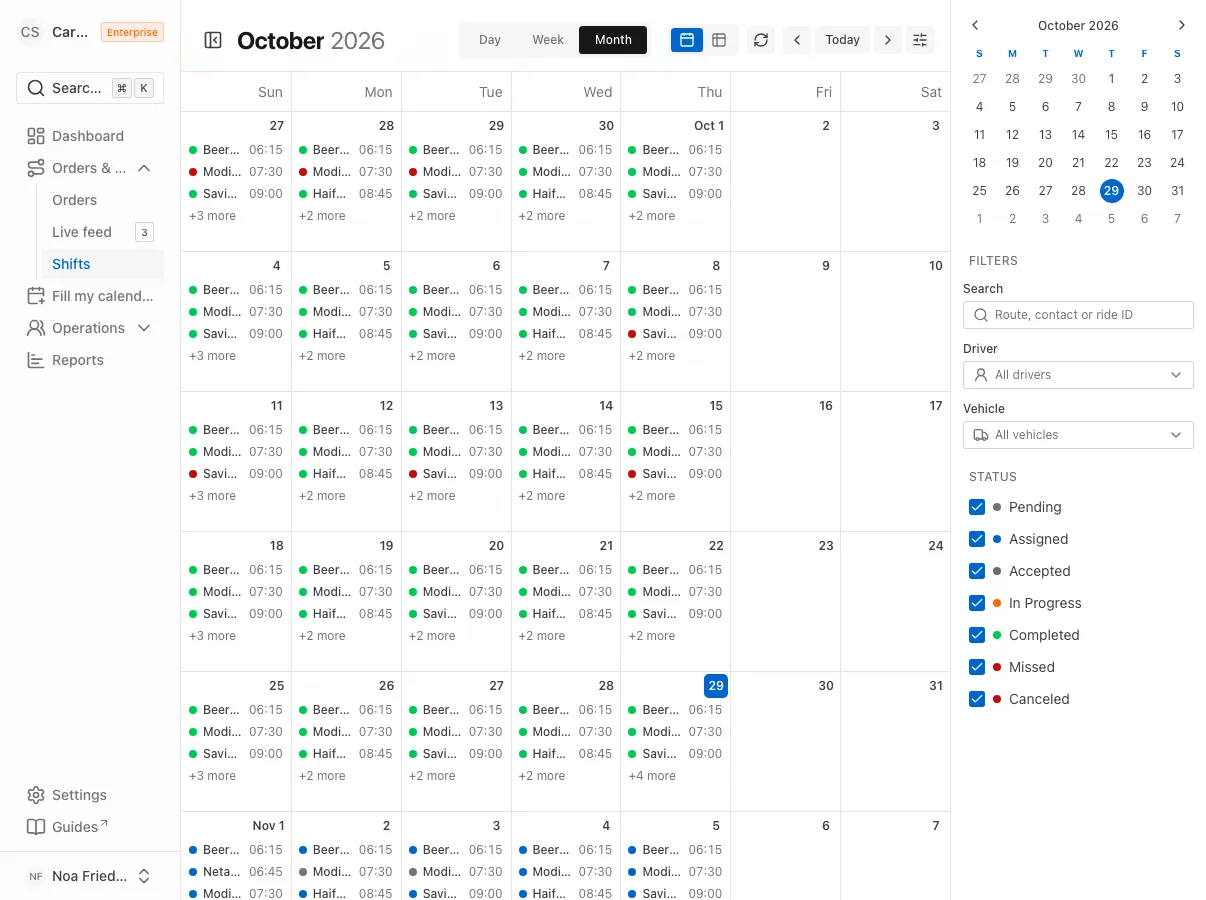
In the sidebar, open Orders & Rides and choose Shifts. You see a monthly calendar with every ride, shown with its time and short ID. A status legend sits below the calendar.
Choose a view and a day
Click Day, Week or Month to change the zoom. Today returns to the current date, and Jump to date goes to a specific day. The arrows move between periods. The small tabs at the edge switch between the calendar and a table.
Filter by status
Open Filter by status and choose which statuses to show. Each status has its own color on the calendar.
| Status | Meaning |
|---|---|
| Pending | The ride has not been assigned yet |
| Assigned | A driver and vehicle are set |
| In Progress | The ride is running now |
| Completed | The ride is finished |
| Canceled | The ride was canceled |
Open a ride
Click a ride on the calendar, or a row in the table. A Ride panel opens with the date, time, Seats Required, route and map. A ride that has started, finished or been canceled is marked Read only.
Open the ride page
In the table, open the Actions menu at the end of a row and choose View Ride Details. The Ride Details page opens, with times, price, seat count and route type.
Switch between waypoints and map
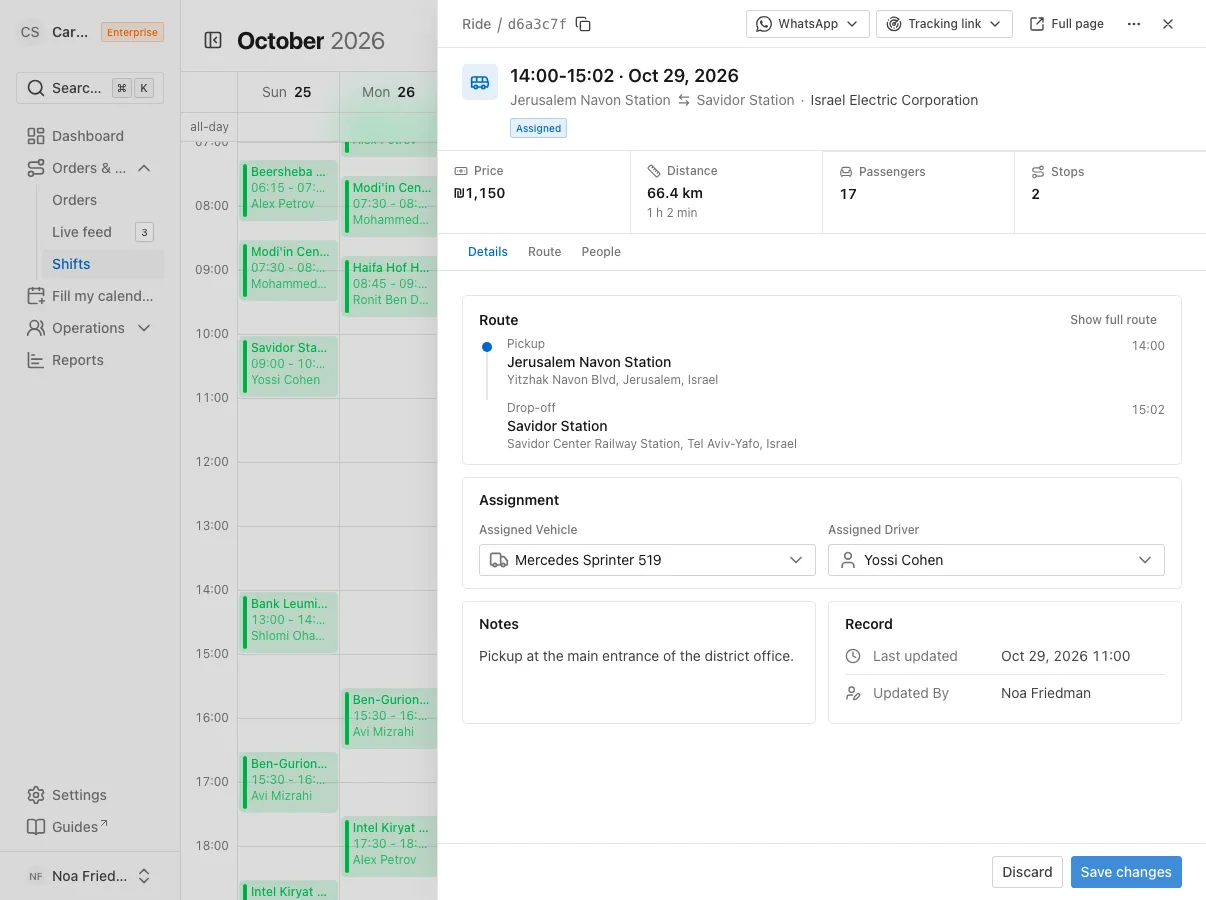
On the Waypoints tab you see all stops in order. On the Map tab you see the route through them. The Assignment tab is for assigning a driver and vehicle, and it has its own guide.
Go back to the order
In the ride panel and on the ride page, the View Order Details button opens the order the ride came from. That is where you check price, contact and stops.
FAQ
Where do I create a new shift?
You do not. A shift is a ride, and it is created when an order is accepted. To add rides, create a new order.
Why does a ride not show on the day I looked at?
Check Filter by status. If a status is hidden, its rides are not shown. Show all brings them all back.
How do I assign a driver?
Open the ride and pick a vehicle and driver. The guide Assign a driver and vehicle walks through it step by step.
What’s next?
Was this helpful?
Thanks, glad it helped.
Ask us