Assign a driver and vehicle without clashes
A ride with a suitable driver and vehicle, and the Unassigned counter goes down.
What you'll achieve
- Find rides that have no driver and vehicle yet
- Pick a vehicle with enough seats and a free driver
- Save the assignment and watch the ride move to Assigned
Before you start
- At least one vehicle with enough seats for the ride
- At least one driver who has joined your organization
- A ride that is not assigned yet
On this page
Why it matters
A ride without a driver and vehicle is a ride that can be missed. The system shows who is free and who fits, and checks the seat count before saving, so you find a problem now and not on the morning of the ride.
Steps
Check how many rides are waiting
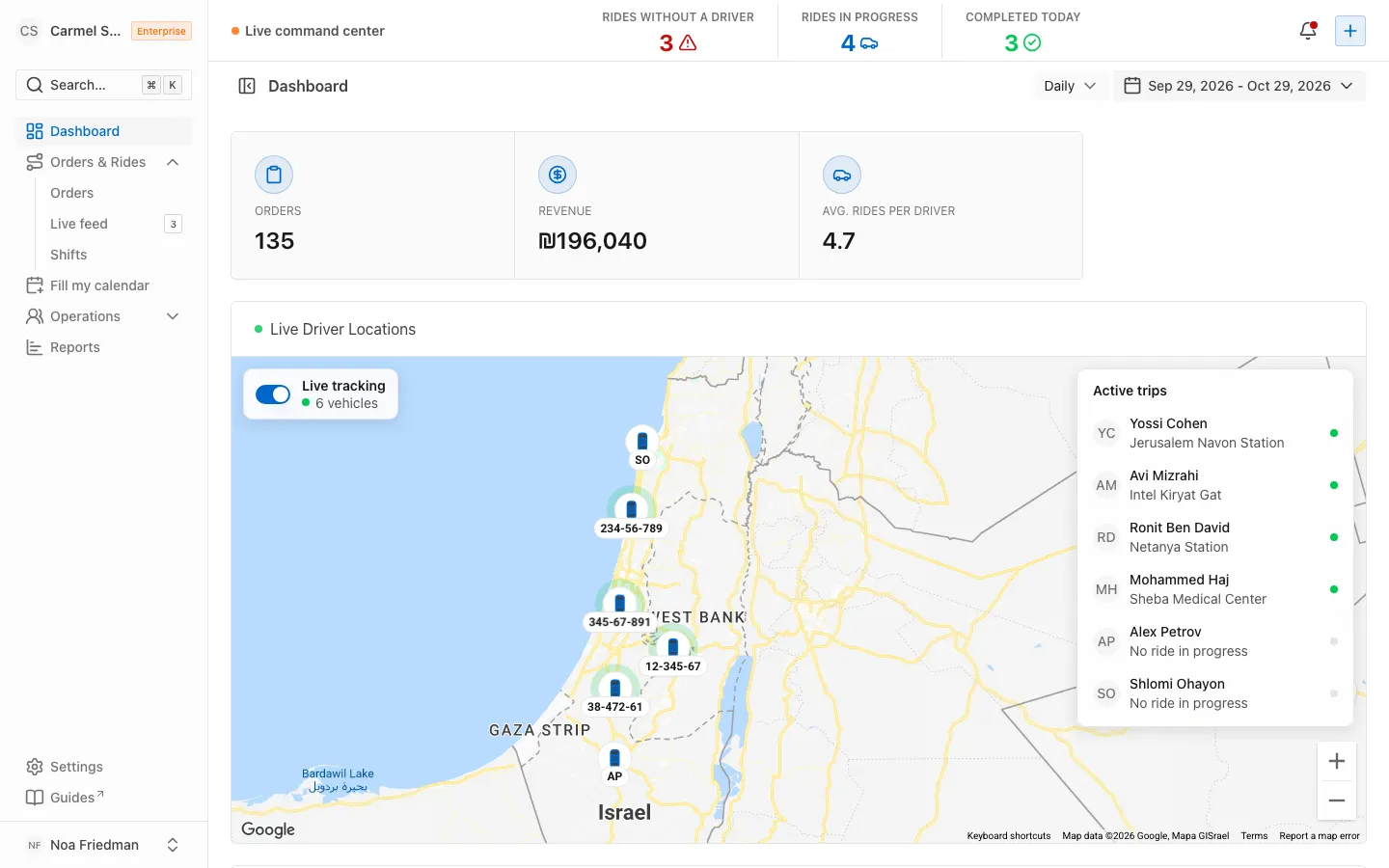
On the dashboard, in the top bar, the Unassigned counter shows how many rides still have no driver and vehicle. When it is red, there is work to do.
Open the waiting rides
In the sidebar, open Orders & Rides and choose Shifts. A ride that has not been assigned is marked Pending. In the calendar view you can see only those: open Filter by status and choose Pending. In the table view, the Driver and Vehicle columns show Unassigned.
Open the ride
Click the ride. A Ride panel opens with the date, time, Seats Required and the number of passengers. Remember that number for the next step.
Compare with vehicle seats
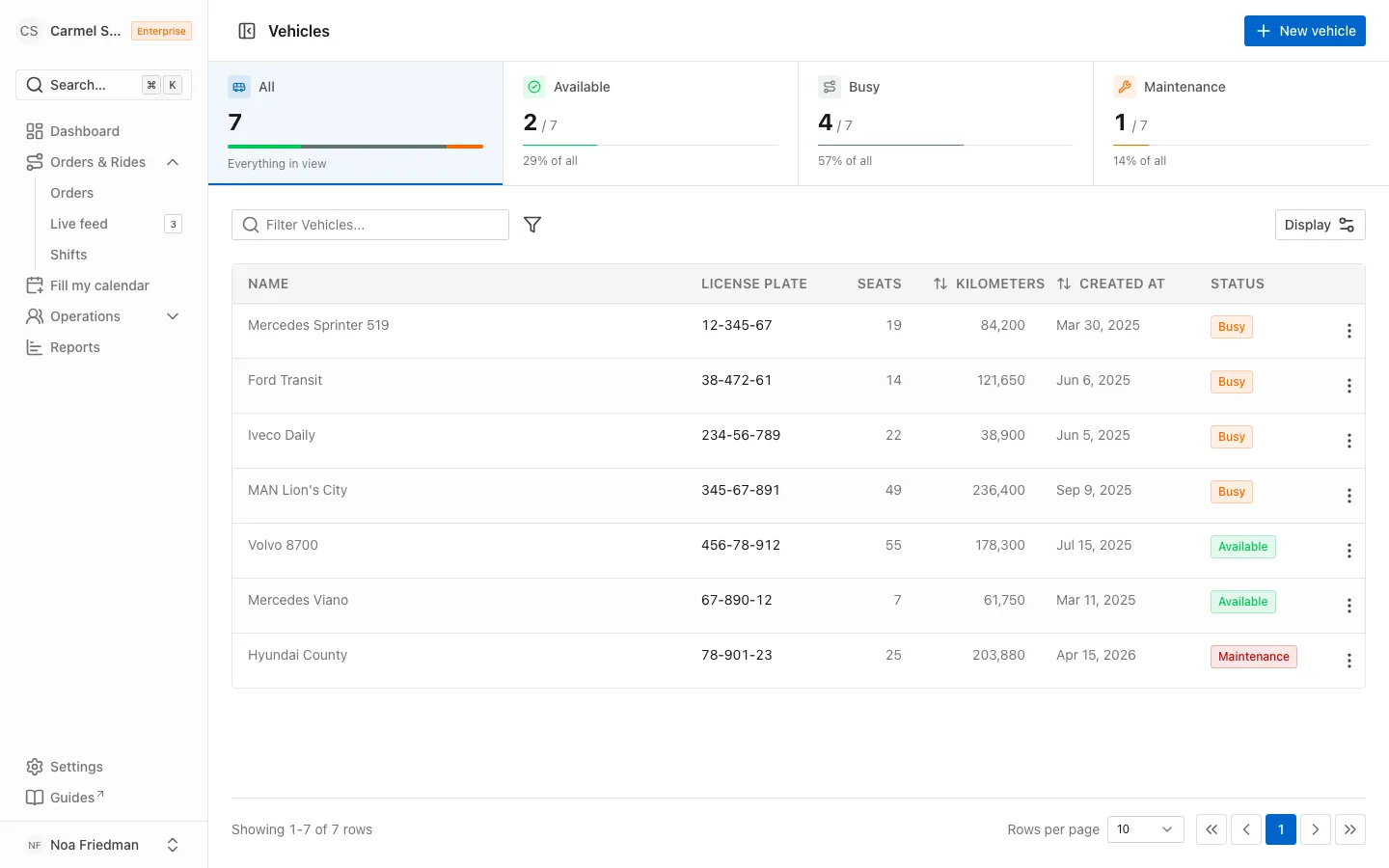
If you do not remember how many seats each vehicle has, the Seats column on the Vehicles page shows it.
Pick a vehicle and a driver
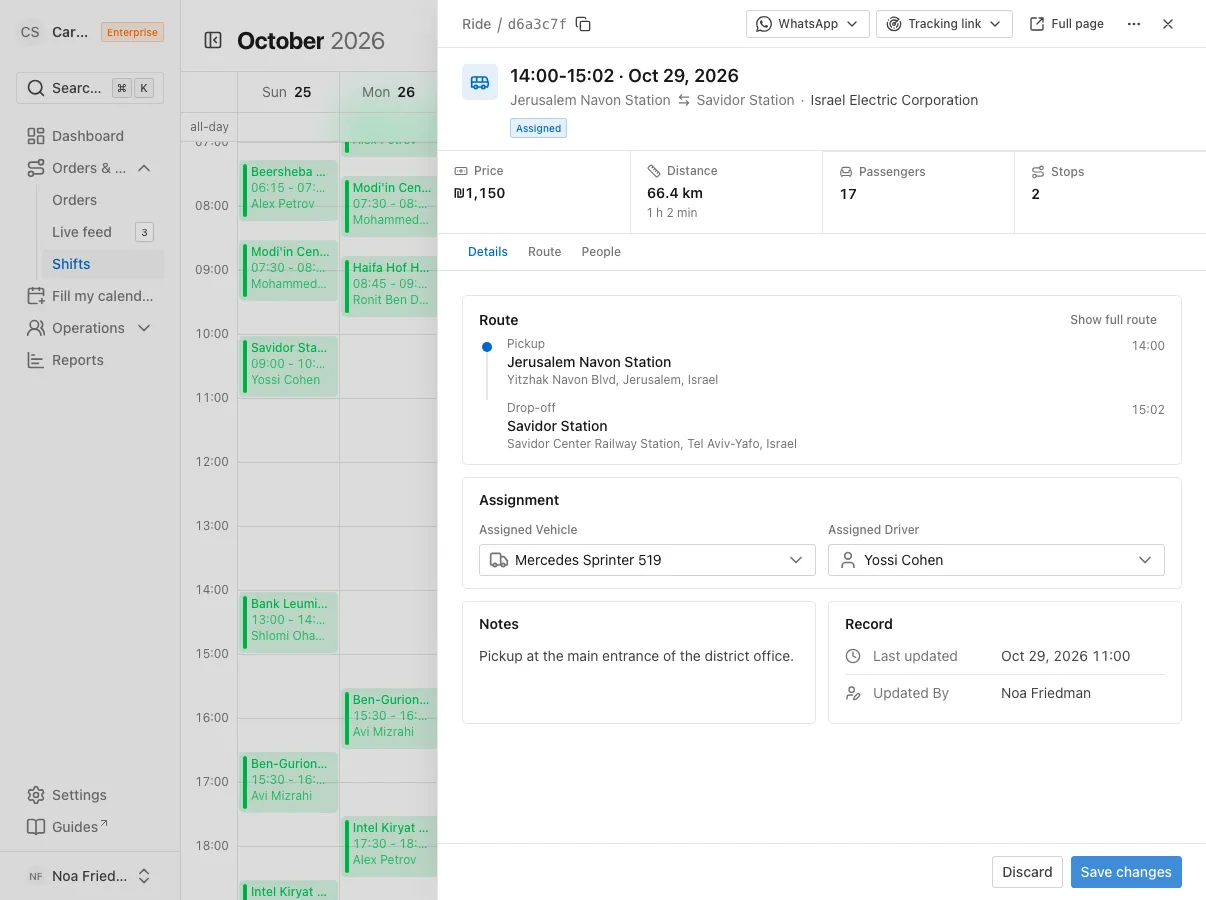
In Assignment Selection, open Select a vehicle… and choose a vehicle, then open Select a driver… and choose a driver. The lists only offer what fits:
- The vehicle list holds only vehicles available in the ride’s time window.
- A vehicle with too few seats cannot be selected. The full ride page also shows the reason, for example 8 seats, needs 12.
- A driver with another ride at the same time cannot be selected, with the reason Busy in this window.
- If you are replacing an existing assignment, the line Replaces and the previous driver or vehicle name shows under the field.
Save the assignment
Click Save Changes. You must pick both a vehicle and a driver. The Changes have been saved successfully message appears, the panel closes, and the ride moves from Pending to Assigned. The next time you load the dashboard, the Unassigned counter is lower.
Common mistakes
- Picking only a driver or only a vehicle. Saving needs both. Fill in what is missing and save again.
- Looking for a driver you cannot select. They are probably busy in this window. If they are not in the list at all, check that they joined your organization on the Crew page.
- Getting an error on save. If it says Cannot assign, the driver or vehicle already has a ride at that time. Pick another.
- Trying to assign a ride that already started. A ride that is In Progress, Completed or Canceled is marked Read only, and its assignment cannot change.
What’s next?
Was this helpful?
Thanks, glad it helped.
Ask us