Add a vehicle to your fleet with a valid plate
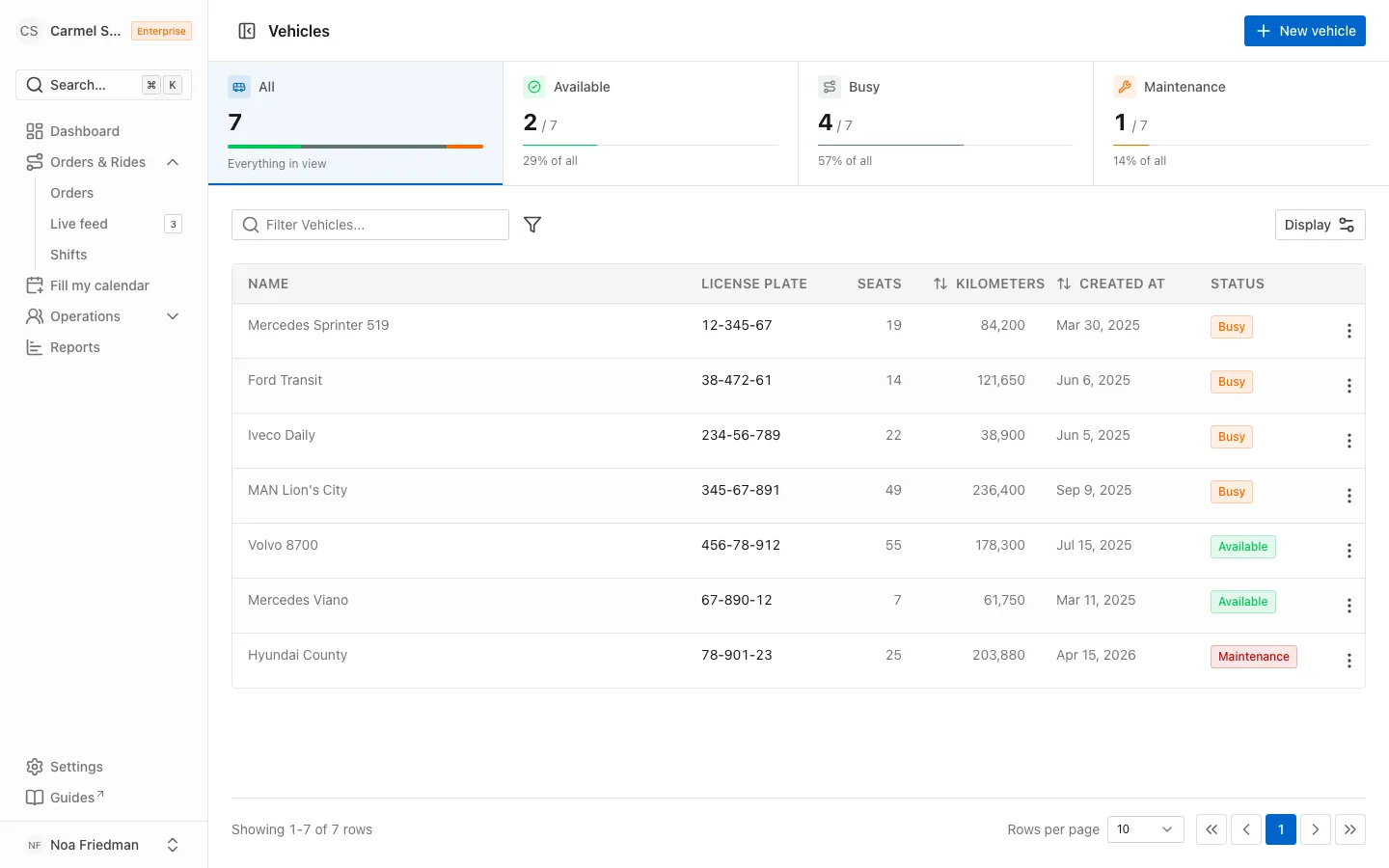
The vehicle shows up in the list with seats and mileage, ready to be assigned.
What you'll achieve
- Add a new vehicle with seats and mileage
- Enter an Israeli license plate that passes validation
- Edit, delete and inspect an existing vehicle
Before you start
- Admin access to your organization
- The vehicle's license plate and seat count
On this page
Why it matters
When you assign a ride, the system only offers vehicles that fit it and compares seats to passengers. A vehicle with the right seat count and a valid plate saves you fixes at the moment of assignment.
Steps
Open the Vehicles page
In the sidebar, open Operations and choose Vehicles. Click New vehicle in the top corner.
Enter name and license plate
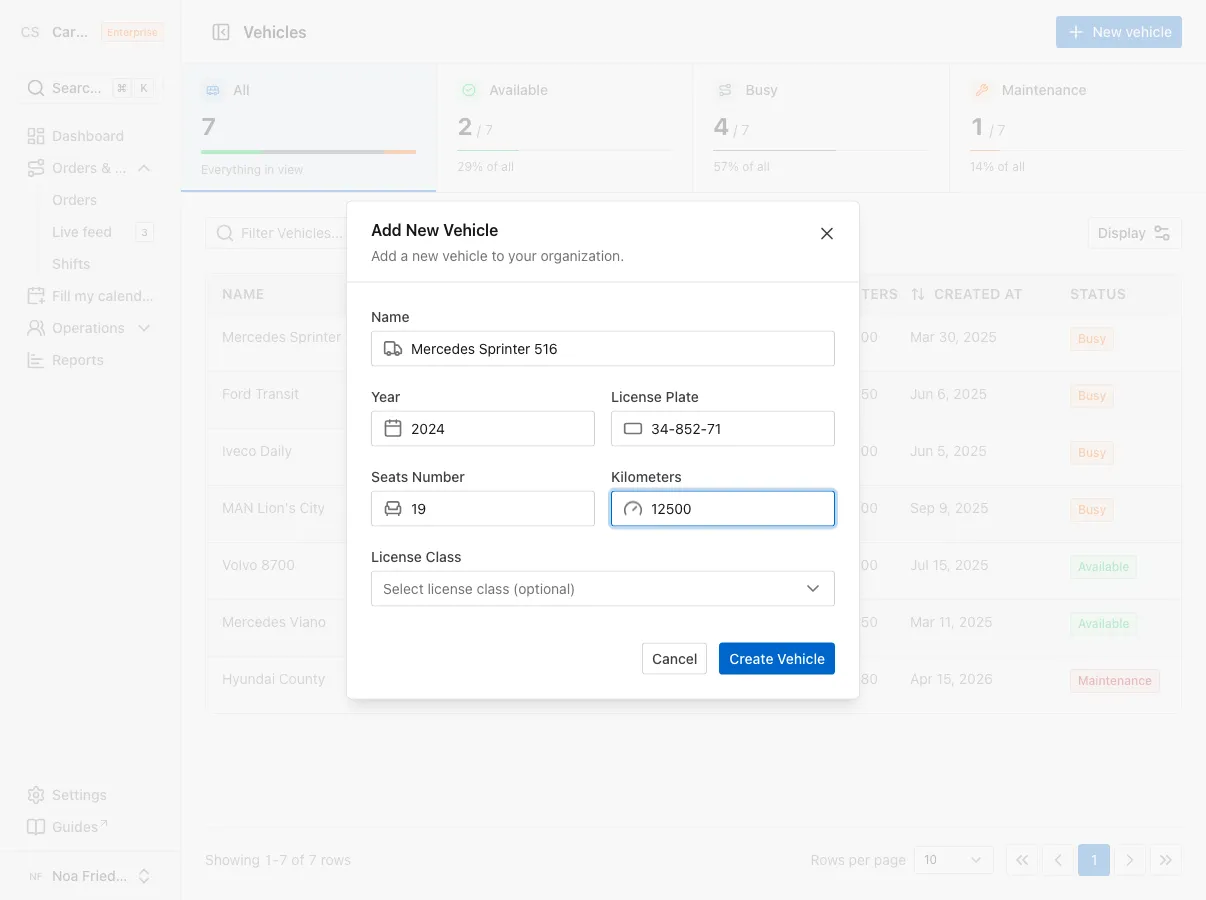
In the Add New Vehicle dialog, fill in Name, for example the model or an internal nickname, and Year. Then type the License Plate.
The number formats itself as you type. A newer vehicle has 8 digits, shown as 123-45-678. An older one has 7 digits, shown as 12-345-67. You do not need to type the dashes.
Enter seats and kilometers
In Seats Number, enter how many passengers the vehicle holds, at least 1. In Kilometers, enter the current odometer reading. You can also pick a License Class, but it is optional.
Save the vehicle
Click Create Vehicle. The Vehicle created successfully message appears and the vehicle lands at the top of the list with the status Available.
Edit or delete a vehicle
Click the three dots at the end of the row. In the Actions menu, choose Edit Vehicle to change the details, or Delete Vehicle to remove it. Deleting asks for confirmation and cannot be undone.
Check a vehicle’s details
Clicking a row opens a side panel with the vehicle’s details and the tabs History, Services, Documents and Incidents. To see everything on a full page, click Open Vehicle page.
Common mistakes
- Typing a short license plate. With up to 6 digits the form will not save. Complete it to 7 or 8 digits.
- Entering the wrong seat count. During assignment, a vehicle with few seats is marked unavailable for large rides. Edit the vehicle and set the correct number.
- Looking for a status field in the form. There is none. The status shows in the list, and a new vehicle starts as Available.
What’s next?
Was this helpful?
Thanks, glad it helped.
Ask us