Invite drivers and admins to your crew
Send an email invitation and see in one table who joined and who is still pending.
What you'll achieve
- Send an invitation to a driver or an admin
- Understand what each role and status means
- See who has joined and who has not accepted yet
Before you start
- Admin access to your organization
- The email address of the person you are inviting
- The driver's license class, if you are inviting a driver
On this page
Why it matters
A driver who has not joined cannot receive rides. An email invitation is how people enter your organization, and the crew table shows who is already in and who is still waiting.
Steps
Open the Crew page
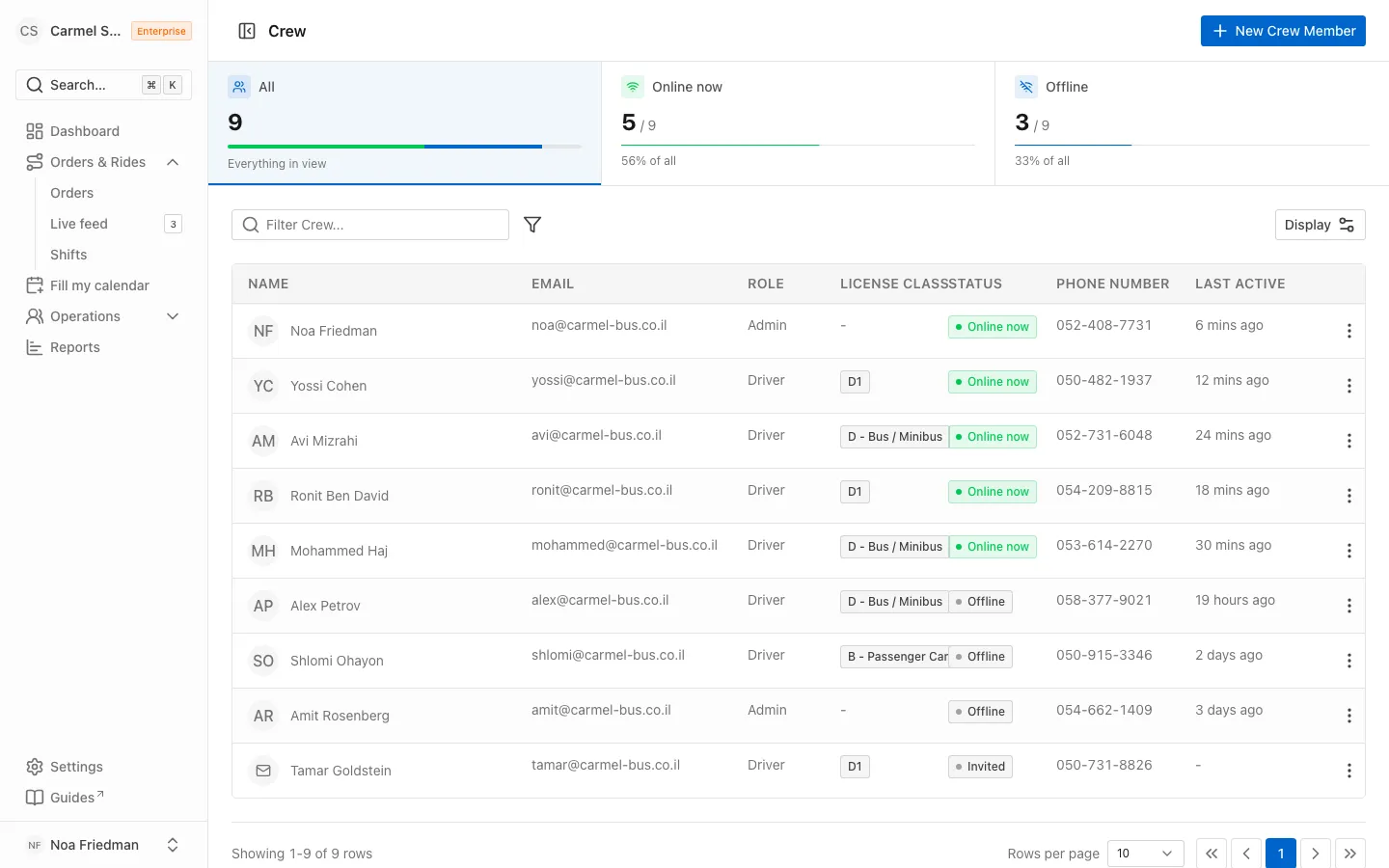
In the sidebar, open Operations and choose Crew. You see everyone on your team, plus any invitations that have not been accepted yet.
Click New Crew Member
Click New Crew Member in the top corner. The Invite Crew Member dialog opens.
Fill in email and name
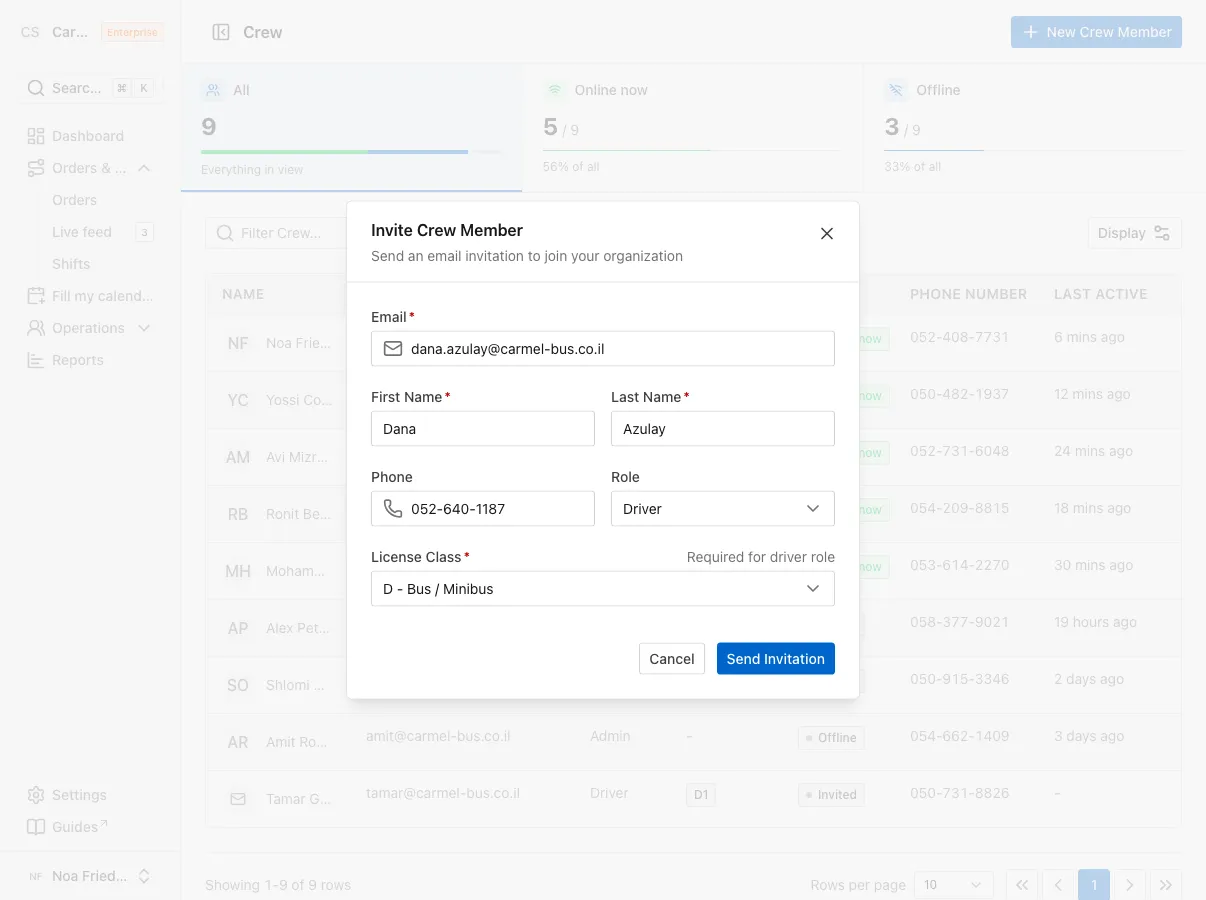
Enter Email, First Name and Last Name. Phone can stay empty.
Choose a role
In Role, choose Driver or Admin. Dispatchers are invited as Admin. If you chose Driver, you must also pick a License Class.
Send the invitation
Click Send Invitation. The Invitation Sent message appears and the email goes out right away.
Check the pending row
The row appears in the table immediately with the status Invited. Until the person accepts, the Name column shows their email address with a mail icon instead of a photo. After they accept, their name and photo replace it and the status updates.
Statuses in the table
| Status | What it means |
|---|---|
| Invited | The invitation was sent and the person has not joined yet |
| Active | The person is active right now |
| Inactive | The person is not active at the moment |
The Last Active column shows when the person was last active, for example “20 hours ago”. It stays empty for an invited person who has not accepted.
Common mistakes
- Inviting a driver without a license class. The form will not submit. Pick a License Class, it is required for drivers.
- Typing the wrong email. You cannot change the email after sending. Send a new invitation to the correct address.
- Looking for a name and photo on an invited person. Until they accept, you only see an email and the Invited status. That is expected.
What’s next?
Was this helpful?
Thanks, glad it helped.
Ask us