Find any ride in the table or on the calendar
See every ride in one list, and open any ride with a click.
What you'll achieve
- Switch between the calendar and the table, depending on what you need
- Read every column in the rides table
- Filter orders by status and date
Before you start
- At least one accepted order, so there are rides to show
On this page
Why it matters
The calendar shows what happens on a given day. The table answers other questions: how many rides there are in total, which ones still have no driver, and what the ID is of a ride a client is asking about. Once you know where to look, checking takes seconds.
Steps
Open the Shifts page
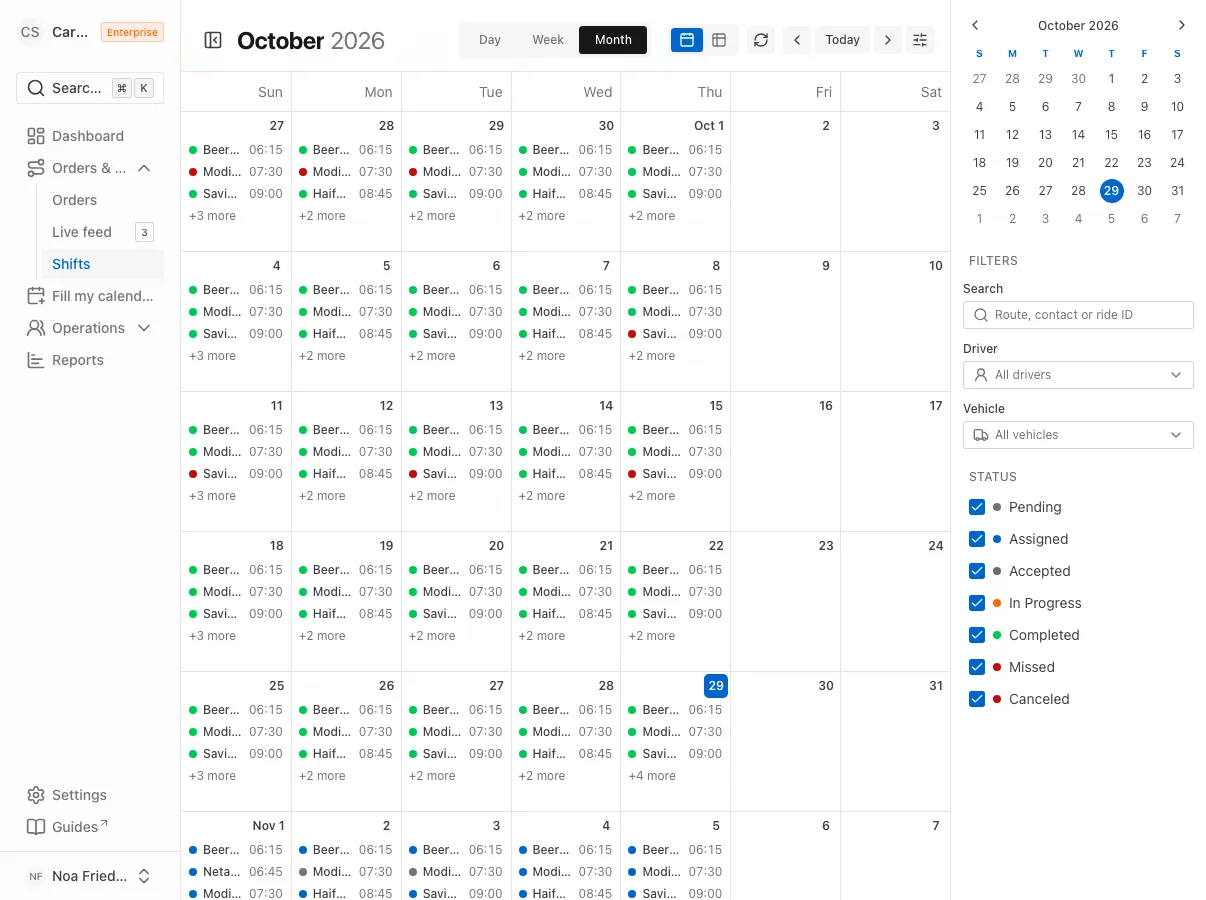
In the sidebar, open Orders & Rides and choose Shifts. The default is a monthly calendar. Every ride is an item with a time and a short ID.
Switch to the table view
At the top there are two small tabs, one with a calendar icon and one with a table icon. Click the table icon. On a phone, the table becomes cards, one card per ride.
Read the columns
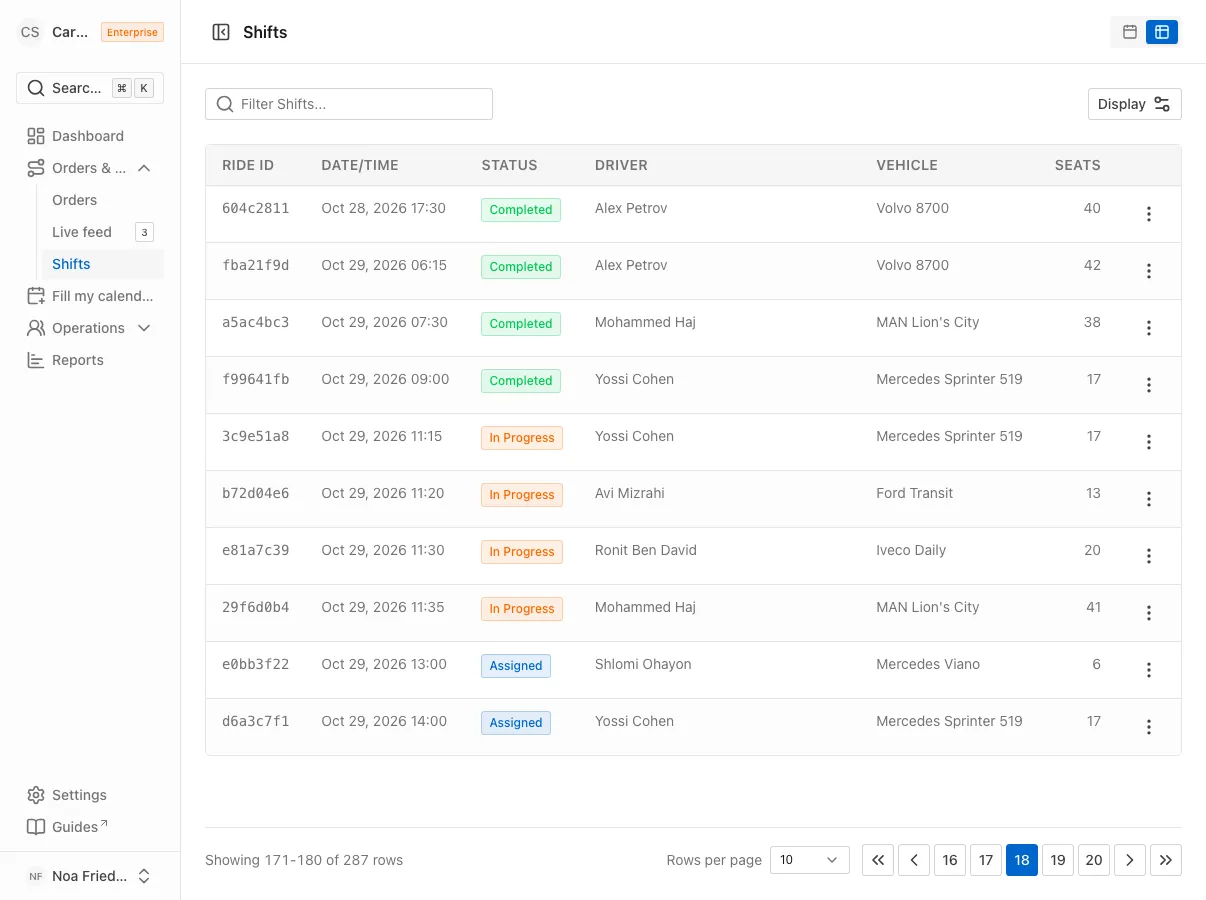
| Column | What it holds |
|---|---|
| Ride ID | The first eight characters of the ID |
| Date/Time | When the ride starts |
| Status | Pending, Assigned, In Progress, Completed or Canceled |
| Driver | The driver’s name, or Unassigned |
| Vehicle | The vehicle’s name, or Unassigned |
| Seats | The seats the ride needs |
Search and page through
In the Filter Shifts… field, type to narrow the list. At the bottom of the table the summary reads, for example, Showing 1-10 of 42 rows. In the Rows per page picker choose 10, 25, 50 or 100, and move between pages with the arrows.
Open a ride
Click a row, and a side panel opens with the ride details. For more actions, open the Actions menu at the end of the row:
- Copy Ride ID copies the full ID to your clipboard.
- View Ride Details opens the Ride Details page.
- View Order Details opens the order the ride was created from.
Filter orders
When you need the state of orders and not rides, open Orders & Rides and choose Orders. Above the table there is a status picker that shows All. Open it and choose Provision, Offered, Accepted or Canceled.
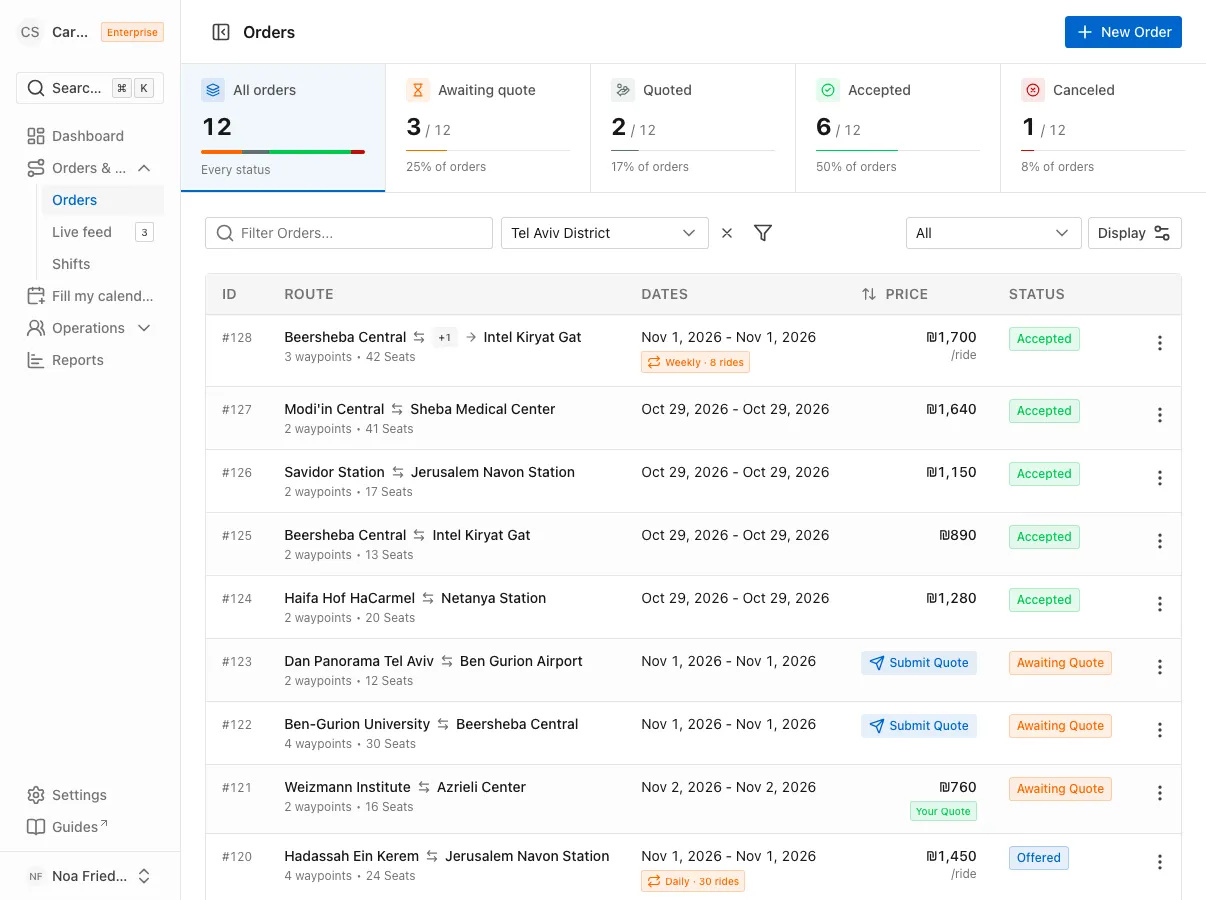
For a finer filter, click the filter icon. In the Order Filters panel fill Status, Reservation ID, Departure Date or Return Date. Click Apply. While a filter is active, a small number shows on the filter button. Reset clears everything.
Common mistakes
- Looking for status in the rides table. The status filter lives on the calendar, under Filter by status.
- Thinking the ID in the table is the full ID. The column shows only the first eight characters. To copy the full ID, use Copy Ride ID.
- Mixing up an order and a ride. A recurring order creates a ride for every date. Orders shows the request, and Shifts shows each ride on its own.
What’s next?
Was this helpful?
Thanks, glad it helped.
Ask us