Follow drivers and open orders in real time
See who is driving right now and which orders are waiting for your quote.
What you'll achieve
- See on the map every driver who is on a ride right now
- Understand when a driver shows on the map and when they drop off
- Find open orders and send them a price quote
Before you start
- Admin or dispatcher access in your organization
- At least one driver who has started a ride, so there is something on the map
On this page
Why it matters
A client calls and asks where the driver is. By the time you find the driver’s number, time has passed. The map on the dashboard answers that at a glance, and the live feed shows which new orders are waiting for your quote.
Steps
Open the dashboard
In the sidebar, open Dashboard. At the top, under Live command center, there are three counters: Unassigned, In Progress and Completed. In Progress is the number of rides running now, and Completed is the number of rides that finished today.
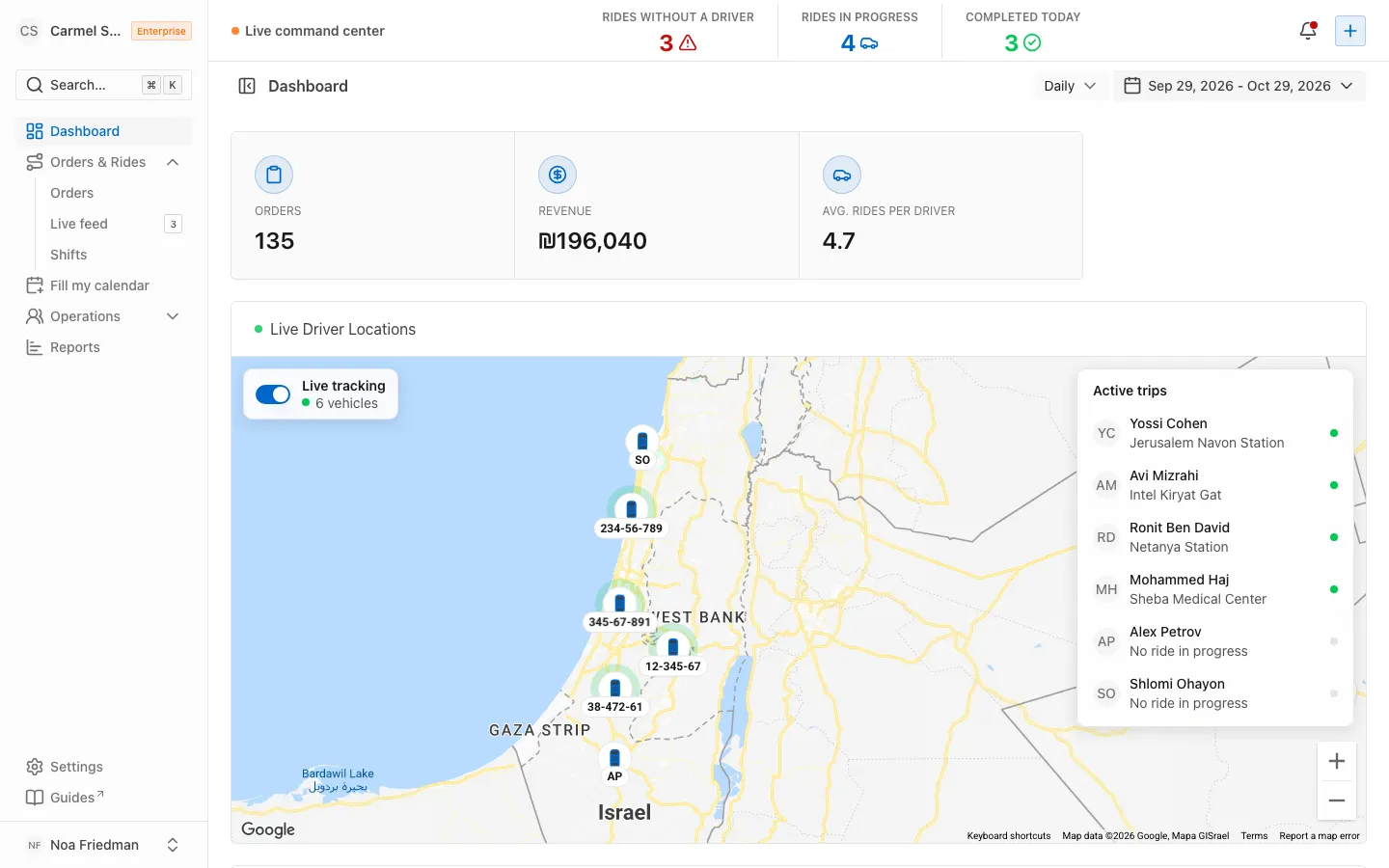
Scroll to the driver map
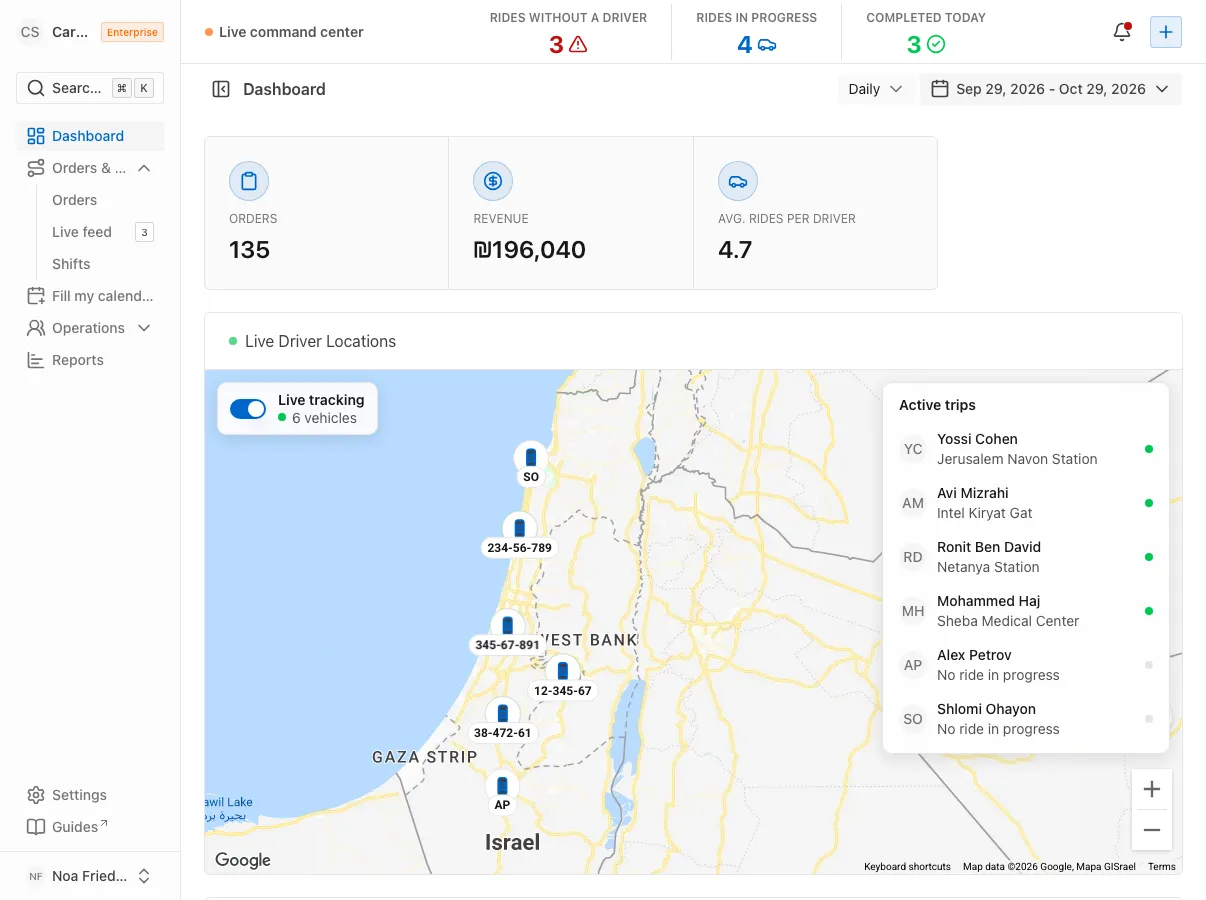
Scroll down, past the Orders and Revenue cards and the revenue chart, to the Live Driver Locations card. In the corner there is a counter, for example 3 Active Drivers. The map opens on central Israel and moves toward the drivers who appear on it.
Read the markers
Every active driver is marked with their photo and a green dot. Hover over a driver and a small card shows their name, the Online badge and the Last seen line, with the date and time of the last report. In the top corner of the map you can switch between map and satellite, and go full screen.
Understand who appears on the map
A driver appears only if they reported a location in the last 5 minutes. The driver’s app reports every 15 seconds, but only during an active ride. The map refreshes on its own every 15 seconds, so you do not need to reload the page.
Open the live feed
In the sidebar, open Orders & Rides and choose Live feed. This is the Open Orders screen: client orders with the status Provision that wait for a price quote. Next to Live feed a number shows how many orders are waiting for you.
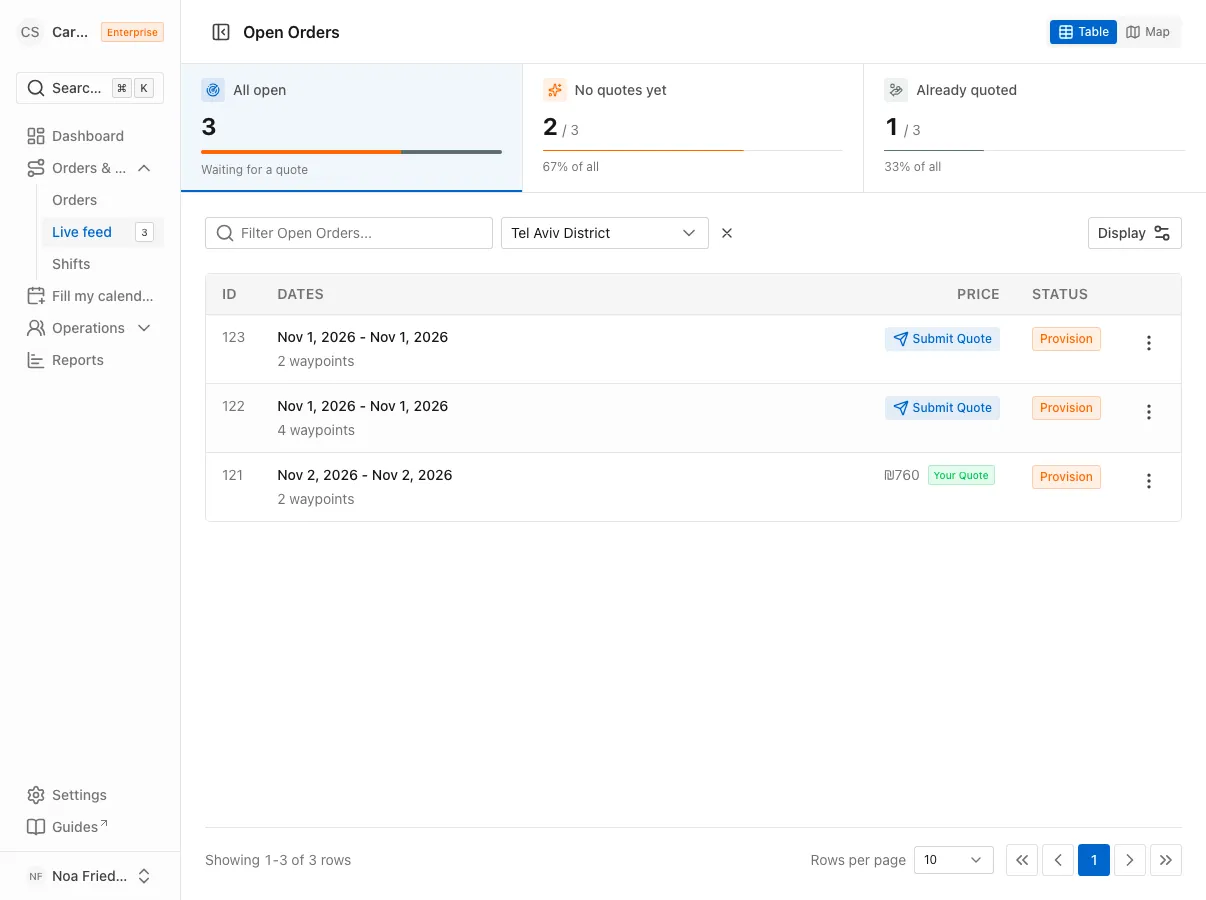
The table shows ID, Dates, Price and Status. Click a row to open a side panel with the order details.
Switch to the map and filter by district
At the top, click the map icon. Every order is marked at its pickup point, and under the map a line says how many orders are available. In the Filter by district… field choose the districts you cover, and the list and the map narrow down.
Send a price quote
In the Price column click Submit Quote. In the Submit Quote window type the Quote Price, at least 50, and click Submit Quote. The Quote submitted successfully message appears, and the row shows the price and the Your Quote badge.
FAQ
Why is a driver missing from the map?
They probably have not started a ride yet. The app sends a location only during an active ride. If they are mid-ride, there may be no signal or the app may be closed. After 5 minutes without a report they leave the map, and they return with the next report.
Where is the order queue that used to be here?
It is now called Live feed, and the screen is called Open Orders. It sits under Orders & Rides.
Why are there no orders in the live feed?
Only orders with the status Provision show. If you chose districts in the filter, orders outside them do not appear. Clear the filter to see everything.
What’s next?
Was this helpful?
Thanks, glad it helped.
Ask us