Start and finish a ride from your phone
A ride marked stop by stop, and closed with one tap at the last stop.
What you'll achieve
- Find your next ride on the Today page and start it
- Mark arrival at every stop and see how much is left
- Finish the ride and check what comes after it
Before you start
- A driver account that joined the organization
- A ride the dispatcher assigned to you
- Location permission in your phone's browser, so arrival times show
On this page
Why it matters
The dispatcher sees your ride move forward, and the client knows when to be ready. That only happens when you start the ride and mark each stop on time. There is no form to fill and no call to the dispatcher: the ride closes by itself at the last stop.
The driver screens are built for a phone. Buttons are large, and the bottom bar has Today, My rides, Notifications and Menu. When a ride is active, Active ride joins it.
What the Today page shows
| State | What appears | The button |
|---|---|---|
| No ride | No rides assigned | Refresh |
| A next ride | A Next ride card | Start ride |
| A ride in progress | A card with the In progress badge and Stop 2 of 3 | Continue ride |
Steps
Open the Today page
In the bottom bar tap Today. This is your first screen. At the top there is a refresh button, and if a new ride was assigned, tap it so the ride appears.
Check your next ride
In the Next ride card you see the Departs time, the vehicle name, plate number and passenger count, and the first and last stop. When 15 minutes or fewer are left, the Departs in 12 min badge appears, with the current number.
In the Contact: line you see who is waiting for you, and the Call button dials them directly. For the full ride details tap Details. Under the card, in Upcoming, are the next three rides, and All rides opens all of them.
Start the ride
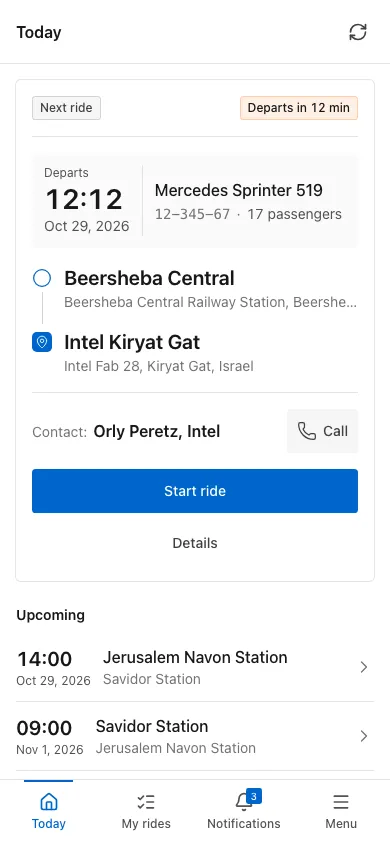
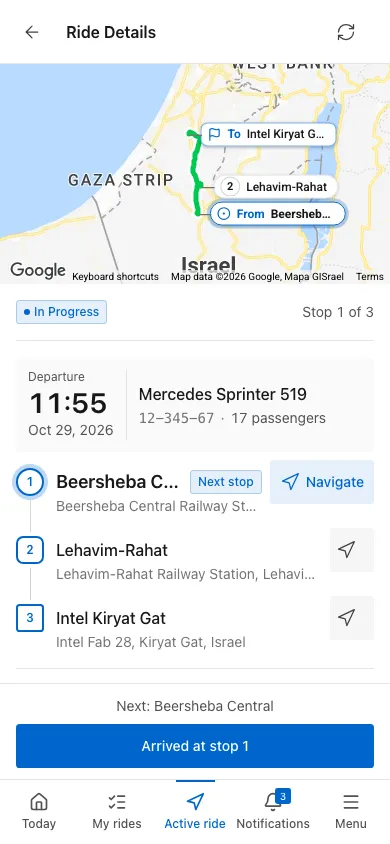
Tap Start ride. You move to the Active ride page automatically.
Follow the stops
At the top it says Active ride · Stop 1 of 3. Below are three figures: To next stop, Distance left and Arrival. They are calculated from your location.
In the Stops list the next stop is marked Next stop, and stops you passed are marked Done. Next to the next stop there are two buttons, for navigating with Google Maps and with Waze. At the bottom of the card are Vehicle and Contact.
Mark arrival at every stop
When you arrive, tap Arrived at stop. The system records the arrival and moves you to the next stop. Tap only when you are really at the stop, because the dispatcher and the client see the progress.
Finish the ride
At the last stop the button changes to Complete ride. Tap it. The Ride completed message appears, and you return to the Today page. The ride becomes Completed, the vehicle is free for the next ride, and the dispatchers in your organization get an update.
Check My rides
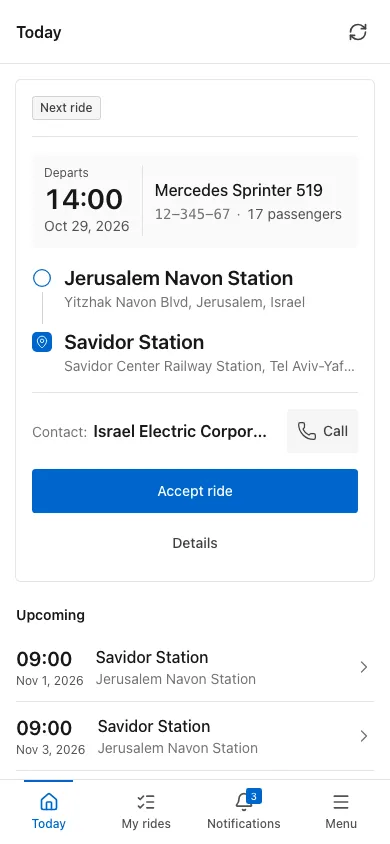
In the bottom bar tap My rides. Every assigned ride shows as a card, with the time, Price, Passengers and the buttons Accept ride and View details. Accept ride starts the ride, exactly like Start ride. With no rides you see No rides available.
Common mistakes
- Trying to start too early. The system allows starting only from 30 minutes before the scheduled time. Wait, and tap Start ride again.
- Waiting for a ride to appear without refreshing. Tap the refresh button on the Today page. The page also refreshes when you return to it from another app.
- Marking arrival before you arrive. The dispatcher and the client see the progress. Tap Arrived at stop only at the stop.
- Not allowing location. The ride still works, but Arrival is not calculated and the dispatcher cannot see you on the map.
- Looking for a ride on Today and not finding it. The page shows your next ride and three more. Everything else is under My rides.
What’s next?
Was this helpful?
Thanks, glad it helped.
Ask us